SnackpassSnackpassHelp Center ↗
SnackOS 2.0

Upgrade Guide

Everything you need to know about moving your restaurant to SnackOS 2.0 — what’s changing, what to expect, and where to find step-by-step instructions.

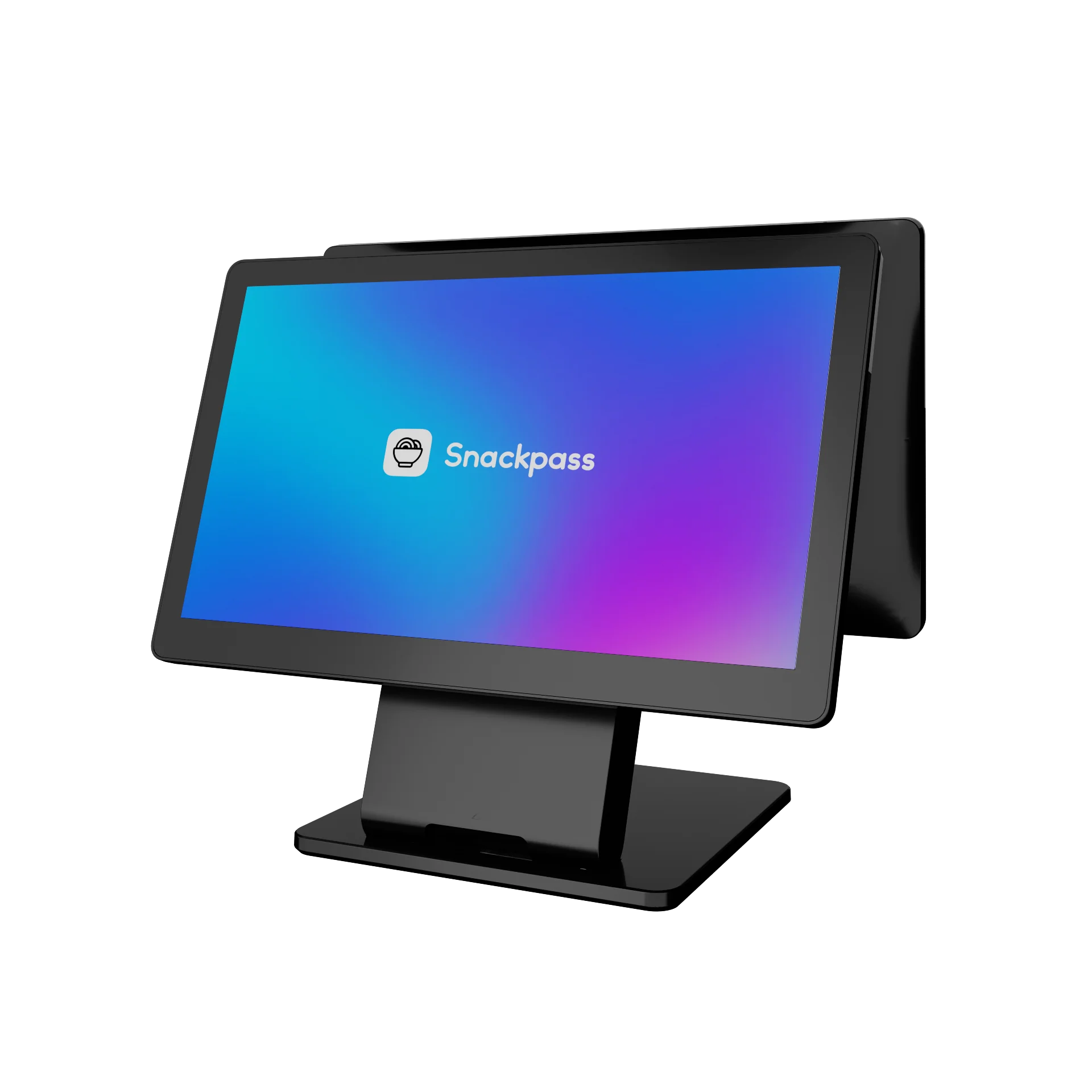
Snackpass RegisterSnackpass payment reader
✓
No action is required to upgrade.Your Snackpass devices will transition as part of the SnackOS 2.0 rollout. Use this guide to understand what’s changing and what you may want to configure once you’re on SnackOS 2.0.
What’s Changing

Your Guide To SnackOS 2.0

Start with the overview below. When you’re ready for step-by-step setup, each section links to the detailed Snackpass Help Center documentation.

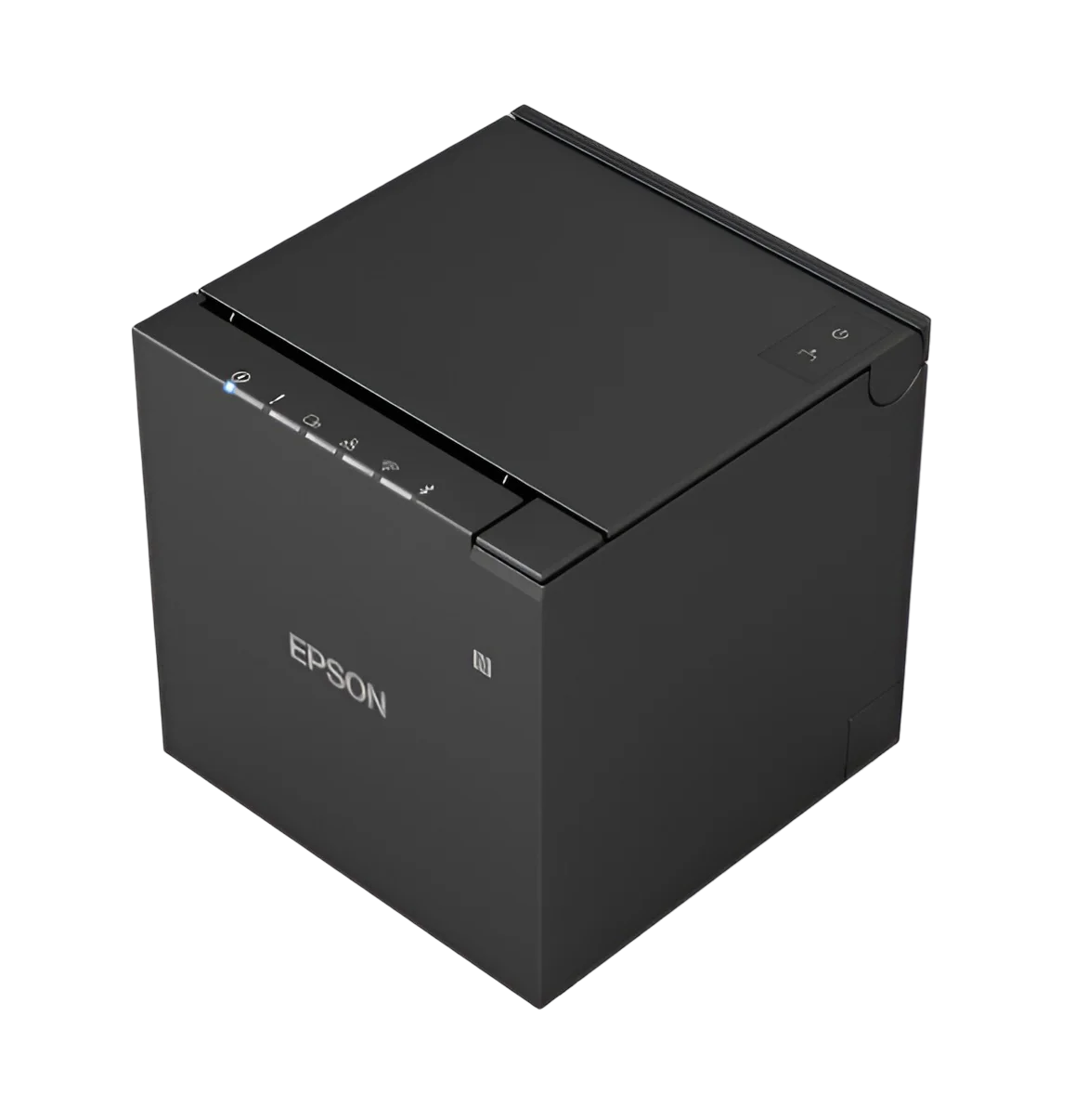
Receipt printer
Printing & Print Formats

Printing Moves Into SnackOS

WHAT CHANGED?

Wi-Fi and Ethernet printers remain supported, while printer setup and management move directly into SnackOS Settings. Bluetooth printers are no longer supported.

WHAT DO I NEED TO KNOW?

If you already use a supported Wi-Fi or Ethernet printer, you can keep using the hardware. Receipt and label formats also gain more customization.

What to do → Use LAN Printing and print-format settings in SnackOS when setting up, managing, or troubleshooting printers.
Learn About LAN Printing →
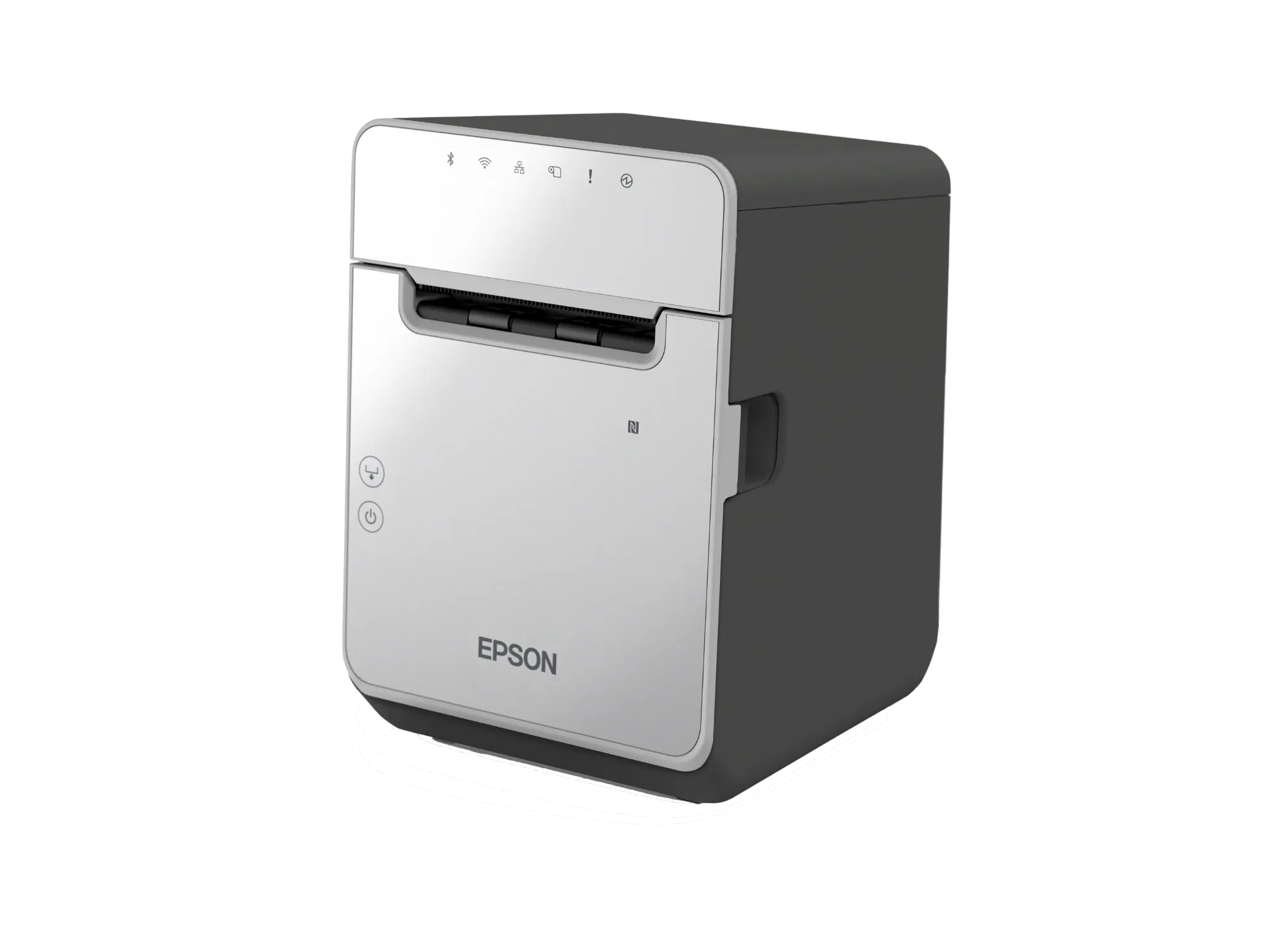
Label printer
Stations

Stations Become Essential

WHAT CHANGED?

Stations are now created and managed in SnackOS Settings and are required for printers and KDS to work correctly.

WHAT DO I NEED TO KNOW?

Every restaurant needs the appropriate station configuration — even a restaurant that routes everything through a single Expo station.

What to do → Make sure your stations match your kitchen workflow before relying on printers or KDS.
Learn About Stations →
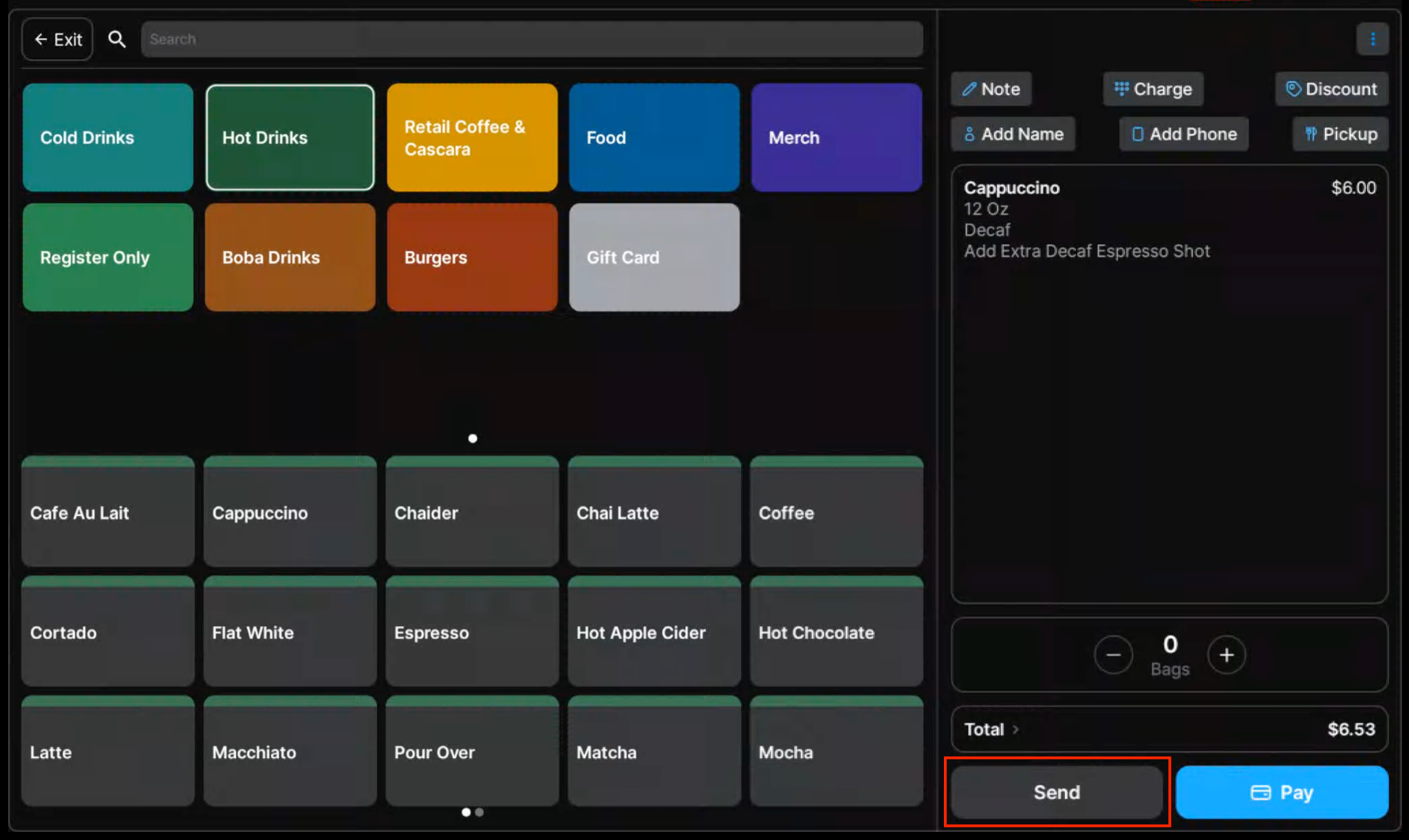
Register 2.0 interface
Register & Guest

More Workflows, Fewer Places To Look

WHAT CHANGED?

Register 2.0 brings together register, orders, and dine-in workflows. Guest combines supported guest-facing ordering experiences.

WHAT DO I NEED TO KNOW?

Some familiar functions may live in a different app than they did in SnackOS 1.0.

What to do → If you can’t find a familiar feature, check the corresponding SnackOS 2.0 app before assuming it’s unavailable.
Explore Register 2.0 →   Explore Guest →
SnackOS Settings
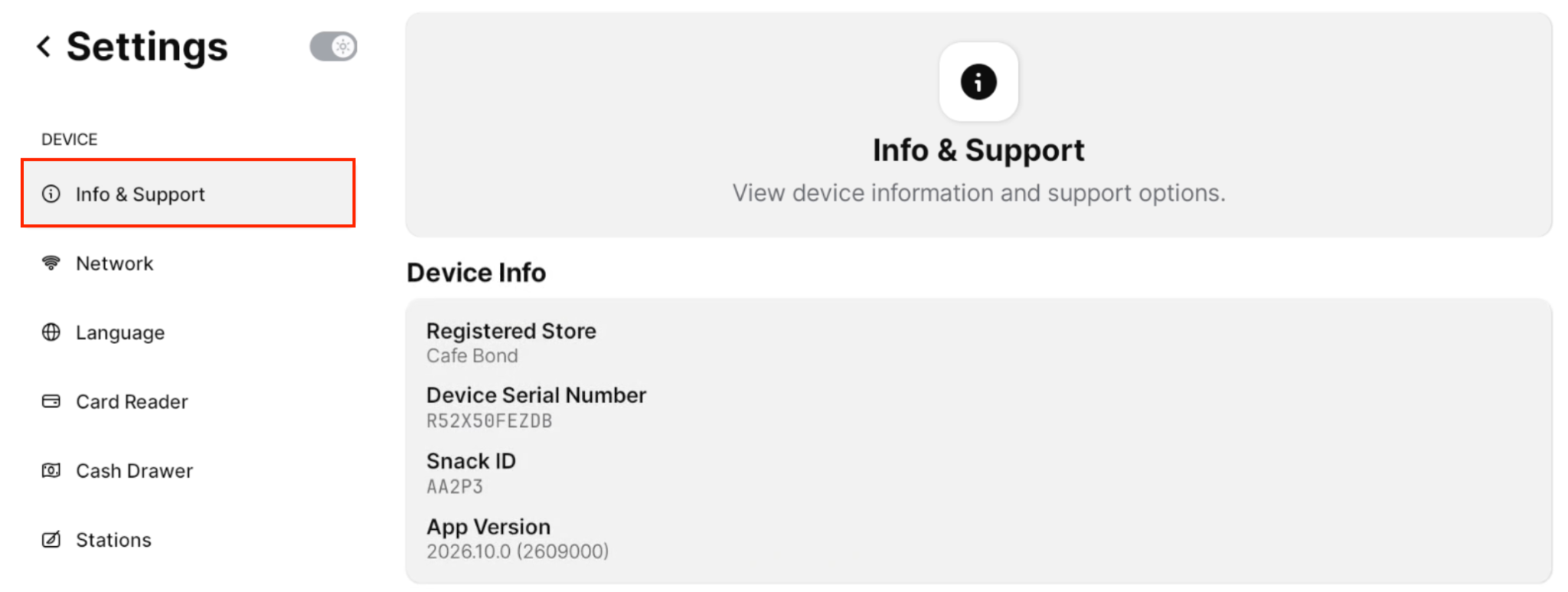
Settings

More Control, Right On The Device

WHAT CHANGED?

More device and restaurant configuration moves from the restaurant dashboard into SnackOS Settings.

WHAT DO I NEED TO KNOW?

Printers, stations, card readers, appearance, and other device configuration may now be managed directly from SnackOS.

What to do → Follow the SnackOS 2.0 settings path shown in current Help Center instructions rather than an older dashboard path.
Explore SnackOS Settings →
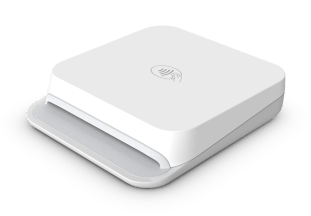
Payment reader
Offline Payments

Keep Taking Supported Card Payments

WHAT CHANGED?

SnackOS 2.0 can process supported card payments during a temporary internet outage.

WHAT DO I NEED TO KNOW?

Offline card payments must be enabled by the restaurant and require acceptance of the applicable Terms of Service. Cash can still be accepted while offline.

Setting path → Settings → Back Of House → Order Flow → Allow Offline Payments. Reconnect as soon as possible so offline payment data can sync.
Learn About Offline Payments →
Snackpass KDS hardware
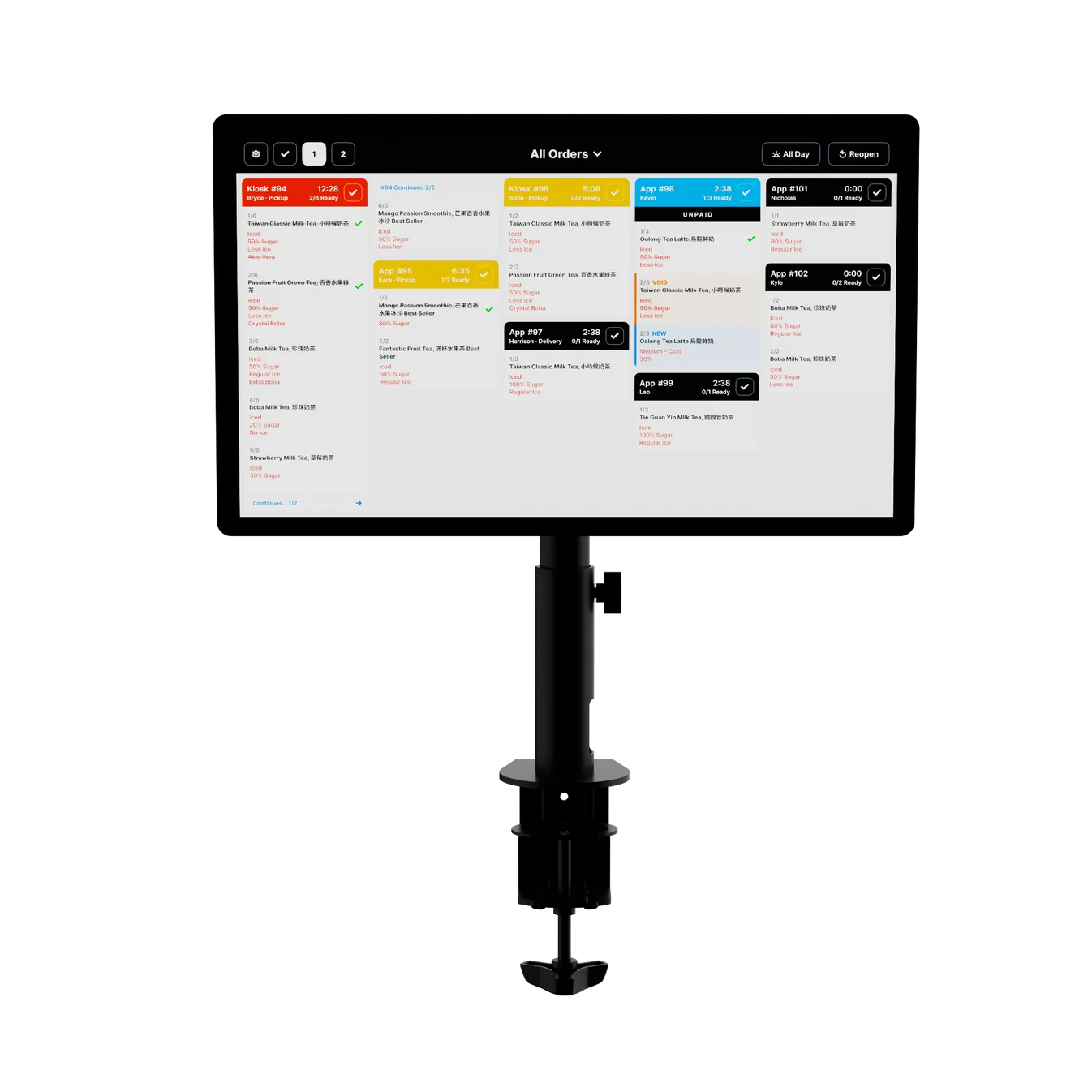
Kitchen Display System

More Control In The Kitchen

WHAT CHANGED?

KDS remains part of SnackOS 2.0, with updated workflows and additional functionality such as bulk order completion.

WHAT DO I NEED TO KNOW?

KDS depends on correctly configured stations. If orders aren’t appearing correctly, station routing should be checked first.

What to do → Create and configure the stations that match your kitchen workflow.
Learn About KDS →
Register 2.0

More Ways To Serve Your Guests

SnackOS 2.0 adds new capabilities while keeping the core workflows your team already knows.

💳
Split Payments
🏷️
BOGO Promotions
🧾
Tax-Exempt Orders
🎁
Gift Card Balance Search
✓
KDS Bulk Completion
🖨️
Custom Print Formats
⚙️
Flexible Stations
◐
Dark & Light Mode
📡
Offline Payments
✨
Updated Workflows
Quick Reference

SnackOS 1.0 → SnackOS 2.0

A quick view of some of the changes you’ll notice during the transition.

Printers managed in Dashboard
→
Manage printers in SnackOS
Prep stations optional
→
Stations required for printers & KDS
Separate register/order workflows
→
More workflows in Register 2.0
No offline card payments
→
Offline card payments available
Limited print customization
→
More receipt & label customization
No dark/light mode
→
Dark & light mode available
No KDS bulk completion
→
Bulk completion available
Need More Detail?

Explore The SnackOS 2.0 Help Center

This guide gives you the overview. For exact setup steps, troubleshooting, and feature instructions, use the dedicated Snackpass Help Center articles.

Open SnackOS 2.0 Help Center ↗